 Marco Sebastiano Alessi |
May 14, 2026
Marco Sebastiano Alessi |
May 14, 2026


Want to remove background music from a finished video so you can reuse the voice-over or dialogue? Has licensed music in your video caused copyright problems, meaning you can no longer use it?
Before we get started, it's important to know why and how to remove music from a video. In this article, you’ll learn how to use our new music removal features in CrumplePop SoundApp, understand the reasons for removing music, explore alternative tools, and get tips for choosing the right one for you.
Let’s dive in!
What Are the Reasons for Removing Music from a Video While Keeping the Voice Up?
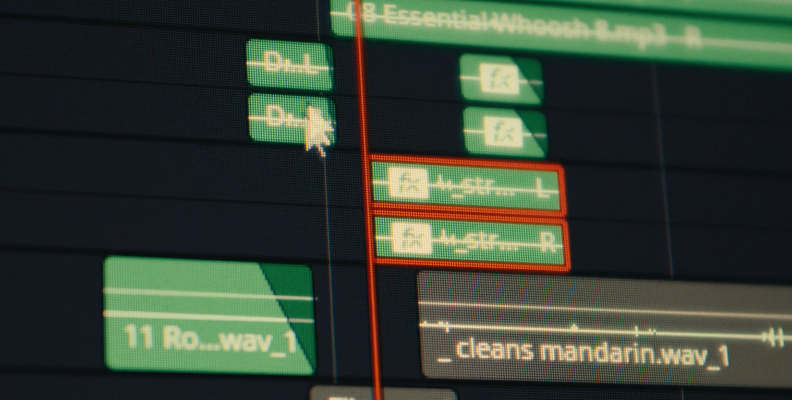
Let’s explore some of the main reasons a content creator or video editor wants to remove music and audio from videos without affecting vocals, to help you decide when this skill is needed most.
Copyright Infringement
This is likely the main reason to remove music from a video. If your old video uses unverified music, you risk getting a claim or strike. Maybe you've already received one and need to reupload the video without copyrighted music. On sites like YouTube, Instagram, or TikTok, your video could be restricted or removed completely.
Monetization
Sometimes legal issues aren’t involved, but you can’t monetize your content. Removing background music can help you regain control over monetizing your videos by deleting problematic music and adding royalty-free tracks, or by keeping only the dialogue.
Replacing Background Music
To replace copyrighted music to avoid strikes, monetize your videos, change the background music that’s too loud or distracting with a calmer one, or simply add music of your own to give your videos your identity.
Dialogue Isolation
Removing background music helps isolate the audio, enhancing clarity and reducing unwanted background noise that can detract from the viewer’s engagement. This can provide your videos with more professional audio.
Alternate Versions
You may need to create different versions of your videos for different purposes or platforms. For example, creating a video for social media with trending music versus a corporate video with a more subtle background music versus a personal video for your friends and family, where you don’t need to worry about licenses or copyrights.
Localization
Localization is another reason to remove music from your videos. Sometimes you find the perfect song, only to realize it's not available or is limited to certain countries or regions. Or the trending song in the UK does not have the same effect in another country on the other side of the world.
How to Remove Background Music from a Video with Cinema 4 Stems from CrumplePop SoundApp
In this tutorial, I’ll use Cinema 4 Stems from the CrumplePop SoundApp to remove the background music. Cinema 4 Stems is our new artificial intelligence (AI) model. It splits any video or audio file into separate parts, called stems: voice, music, sound effects, and other audio elements. Using Cinema 4 Stems, you can remove, adjust, replace, or export these stems for editing or reuse in your digital audio workstation (DAW) or non-linear editor (NLE), or any other software applications used for audio and video editing.
CrumplePop SoundApp processes audio locally on your computer and is available for Mac and PC computers. Additionally, many of its tools can be used as plugins in major DAWs and video editing software, supporting VST3, AAX, and AU formats.
Step 1: Download and Install CrumplePop

Download and install the Boris FX Hub. Then, find CrumplePop under Boris FX products and install SoundApp. Use the free 14 day trial if needed, then launch SoundApp.
Step 2: Open Audio or Video Files
Drag and drop your video or audio file into the CrumplePop app to begin removing background music. Select “Demix” at the top.
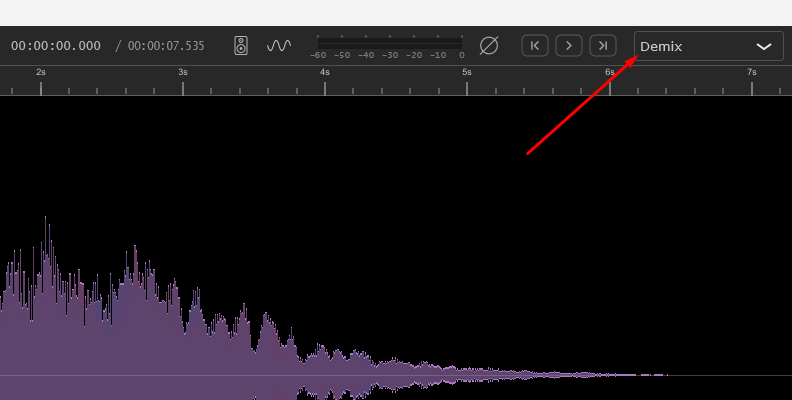
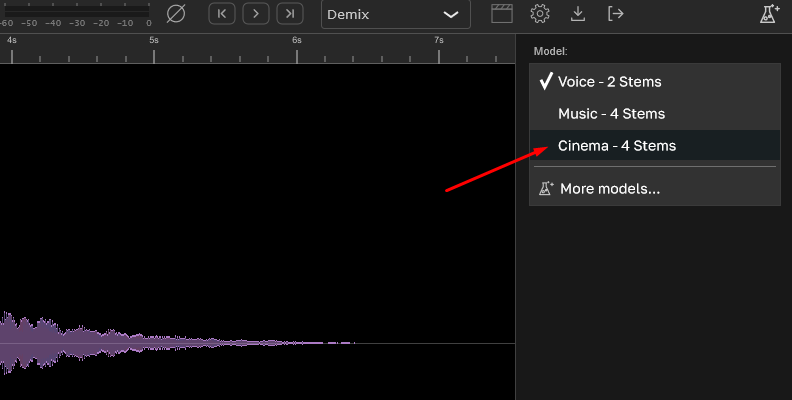
Open the Model dropdown, click “More models” if you don’t see Cinema 4 Stems, and install it.
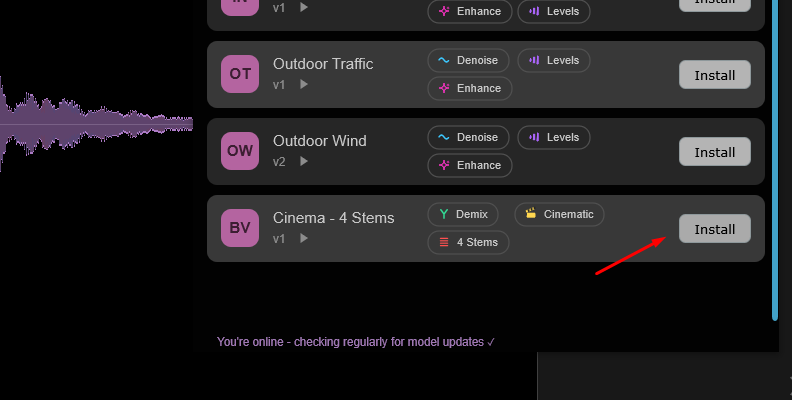
Once installed, close the window. Cinema 4 Stems will now be available in the Model list.
Step 3: Remove Music
Choose Cinema 4 Stems from the Model dropdown and wait for processing. Your audio will split into Music, Effects, Other, and Voice. Lower the Music slider or press M to mute background music.
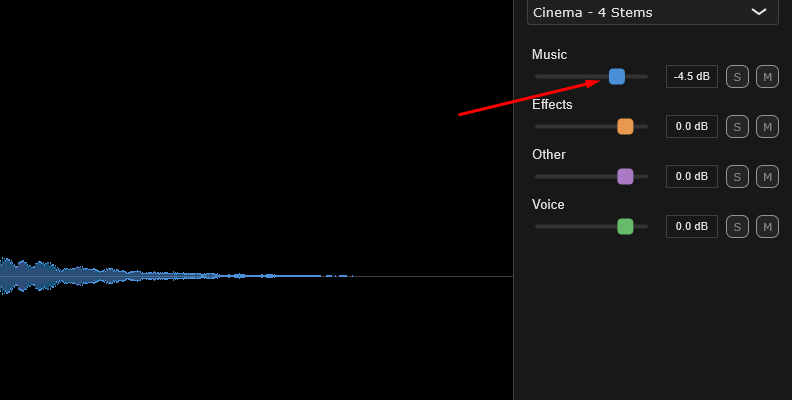
Adjust other parameters as needed. To focus on the voice, lower or mute the Effects and Other tracks.
Step 4: Export
Press the Export button in the upper right corner.
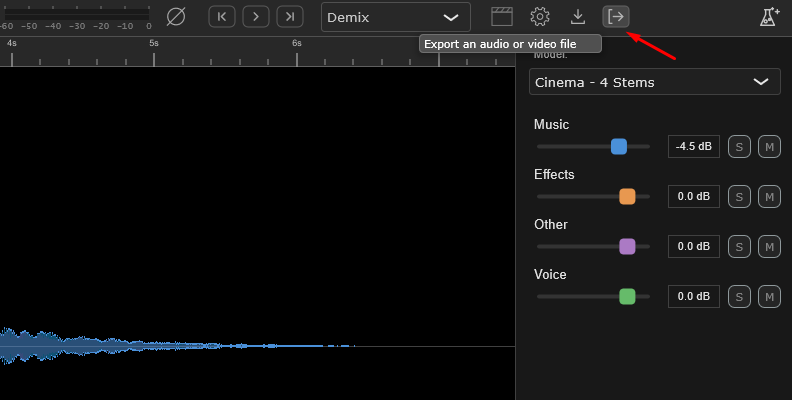
You can choose to export individual stems, all stems, or the mixdown, and select the audio format. Click Export, and that’s it! Import the audio without the music to your video editing software to reuse it.
Discover More Powerful Tools for Removing Music from Videos
Here are other popular alternative tools for removing music from videos.
Tool 1: LALAL.AI

LALAL.AI is a well-known multi-platform tool among musicians and audio engineers that uses AI for high-quality stem separation. It’s available in a web version or a desktop app. It does not offer local processing, so you need to upload your files to their cloud.
Tool 2: Canva Audio Remover

Canva offers an easy-to-use audio remover tool to eliminate audio from your videos. It can mute or adjust the video's volume, but it does not offer stem separation or more advanced settings like CrumplePop or other tools on the list. It’s a great tool if you want to mute the whole video and replace it with a voice-over and additional music, for example, the stems you separate using Cinema 4 Stems.
Tool 3: Remove.Music

Remove.Music is an online AI-powered remover tool that lets you isolate vocals or music from audio or video tracks to create instrumentals or dialogue tracks for your audiovisual projects. The results are quick, but require an online connection to upload the files to their cloud servers for processing.
Things You Should Keep in Mind When Choosing the Right Tool for Your Needs
If you’re struggling to find which tools are best for your needs, consider these factors.
Goals
Define your music removal goals. For a simple process like muting video audio, Canva may suffice. For detailed separation using the cloud, LALAL.AI is an option. If you need advanced separation and privacy, consider CrumplePop SoundApp's Cinema 4 Stems.
Budget
Next, consider your budget. There are options: subscriptions, pay-as-you-go, or perpetual licenses. Your work style determines which is best. A subscription may work for regular use, while pay-as-you-go is ideal for occasional music removal.
Ease of Use
Today, tools are becoming user-friendly, but there are still some drawbacks for beginners. So, depending on your goals, you may approach easier or more complex tools. Luckily, tools like CrumplePop are very user-friendly, making them accessible to anyone working with audio content.
Local vs. Cloud Processing
Many AI online tools are easy to use but rely on cloud services and a stable connection. If you handle sensitive information, choose a program that keeps files offline.
Final Words
Today, it’s easier than ever to remove music from audio or video with high-quality results, just a few clicks. SoundApp's Cinema 4 Stems can help you enhance dialogues, improve sound effects, and remove music, so you can use the separated stems in your favorite software. Try the new CrumplePop Demix features in SoundApp for yourself with a free 14 day trial.
Good luck!
FAQ
Does Separating Audio from a Video Affect Its Quality?
Audio can be affected by the isolating process. To reduce the risk of low-quality output, use dedicated audio-processing tools that can export final files in lossless formats if you plan to use them in other projects, to avoid re-encoding and losing audio and video quality.